


PDF scanner - Scan Documents
4.4232.00 Reviews
App Specs
- Version
- 1.3.3
- Updated On
- License
- Free
- Downloads
- 1,000,000+
- Developer
- Captain Show LLC
- Categories
- Business
- Platform
- Android
Screenshots
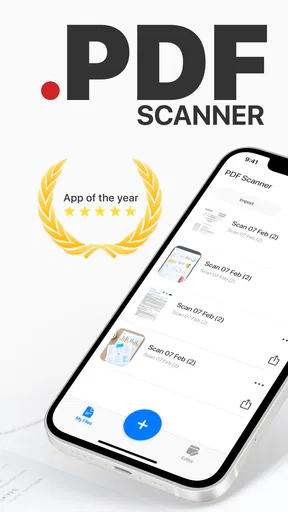
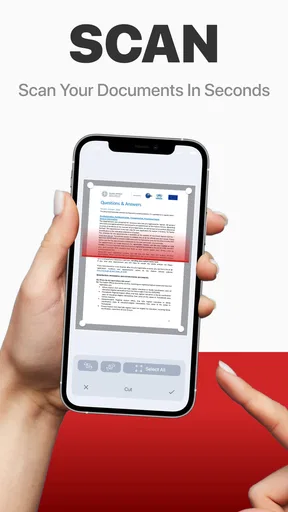
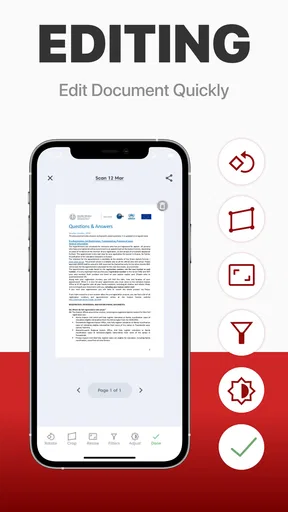
 Analysis by AppCompare
I use document scanners when I need to turn a paper receipt, signed form, or handwritten note into something I can send immediately. PDF scanner - Scan Documents is built for that straightforward moment: point a phone at a document, create a PDF, and share it without reaching for a desktop scanner. It is a free business app from Captain Show LLC, and its simple purpose is also its main appeal.
My overall impression is practical rather than flashy. The app is aimed at people who want a mobile document workflow, not a full office suite. It can make sense for students, freelancers, small-business owners, renters, parents handling school paperwork, and anyone who occasionally needs a clean digital copy. The store summary describes scanning, converting, and sharing documents as the central experience, so I approached it as a quick utility rather than a replacement for specialized document-management software.
It has reached more than a million installs and holds a 4.4 average from roughly 5,600 ratings, which suggests that the basic idea works for a substantial group of users. That popularity is useful context, but I would not treat it as proof that every workflow is equally polished. A scanner can feel excellent for a one-page form and much less convenient when the job involves dozens of pages, sensitive records, or strict filing requirements.
How the scanning workflow feels in everyday use
The most natural way to use this app is to start with a clear task. If I have a single invoice to send to an accountant, I do not need a complicated project setup. I need the camera, a readable capture, a PDF output, and a sharing route. Keeping that mental model makes the app easier to judge: it is valuable when it removes a small piece of friction from a paper-based task.
A realistic example is a rental application. I might receive a paper form, photograph each page, convert the pages into one document, and share the result with the property manager. The important detail is not just taking pictures. Page order, readable edges, and a final check matter just as much. I would review the PDF before sending it, especially if the form includes a signature, bank information, or an identification number.
For receipts, the app is useful when I want a portable record instead of a loose piece of paper. For a signed agreement, I would use it as a digitizing tool, not as evidence that the signature has been legally verified. That distinction is easy to miss with any phone scanner: producing a PDF does not automatically add authentication, encryption, or a formal signing certificate.
The app’s business category fits these situations well. It is not trying to be a note-taking workspace or a cloud filing cabinet in the way a broader productivity platform might be. I see it as the capture step in a larger process. After scanning, I still need to decide where the file belongs, who should receive it, and how long I want to keep it.
Worth Reading Before You Choose

EA SPORTS FC Mobile 26 Is a Bigger Football Game, but It Takes Time

Flipboard Shows What News Apps Must Do Beyond the Feed

Switching to Android Auto Means Rethinking Your Driving Routine

Google Calendar Makes a Crowded Week Easier to Manage

Ludo King Makes the Most of the Minutes Between Plans

Baby Panda World Brings Quick Play to Modern Phones, but Its Game Library Feels Busy
Small habits that improve the result
Lighting makes a bigger difference than people expect. I get better pages by placing the document on a contrasting, flat surface and avoiding a strong shadow from the phone. A slightly angled camera can produce a skewed page that looks acceptable on the screen but becomes tiring to read after conversion. I also check the corners of every page before finishing a multi-page scan; a clipped signature or missing footer can force me to repeat the whole job.
One useful workflow is to group pages by purpose before scanning. I would not mix a tax receipt, a school form, and a personal letter into one PDF simply because they are on the same desk. Separating them early reduces the chance of sharing the wrong page later and makes the resulting files easier to identify.
Another practical tip is to inspect the final document at normal reading size rather than relying only on a thumbnail. Thumbnails can hide faint text, folded corners, or a page captured upside down. This is especially important for invoices and forms where a single unreadable line can matter more than the overall appearance.
For a long document, I would scan in a quiet, organized sequence and keep the original pages in order until the PDF has been checked. A phone scanner is convenient, but it also makes it easy to move too quickly. The app can simplify conversion and sharing; it cannot compensate for rushed photography.
Where it compares well, and where it does not
Compared with using the phone’s ordinary camera, a dedicated scanner app gives the task a clearer purpose. A camera roll full of document photos is awkward to browse, and individual images are not always the format a recipient wants. Turning the material into a PDF makes the handoff more natural, particularly when several pages belong together.
Compared with a desktop scanner, the phone wins on availability. I can work from a kitchen table, a classroom, or a client’s office without waiting until I return to a computer. The trade-off is consistency. A flatbed scanner is usually better for delicate originals, high-volume batches, and pages where exact reproduction matters more than convenience.
Compared with a large office productivity suite, this app may feel less overwhelming for occasional use. I do not want a complete document-management system merely to send one signed page. On the other hand, people who need team folders, structured approval flows, searchable archives, or advanced editing should look closely at their existing office tools before adding another app.
That is the central trade-off: the app is strongest when speed and simplicity matter more than a complete document ecosystem. It is not the choice I would make for a records department or a business that needs a carefully governed archive.
Trust starts with the information the app asks me to consider
Because scanning often involves personal paperwork, I pay attention to trust differently than I would with a casual photo app. A document may contain an address, a signature, financial details, medical information, or an identification number. I do not assume that a convenient scanner should automatically handle all of those materials without thought.
The useful approach is to separate visible user choices from assumptions. I would look at the permission prompts shown during setup and use, read any privacy information presented in the store or inside the app, and notice whether a feature asks me to create an account or send a file elsewhere. I would not grant a permission merely because the app is a scanner; I would consider whether that permission makes sense for the action I am trying to perform.
The developer is Captain Show LLC, and the app is free to install. It also includes optional purchases ranging from less than a dollar to around thirty dollars per item. That matters when deciding whether the free experience is enough for my needs. I would check the purchase screen carefully before confirming anything, particularly if I only need a one-time scan.
The Everyone age rating makes the app broadly accessible, but an age rating is not a privacy guarantee. A document can be sensitive even when the tool itself is suitable for all ages. I would explain that distinction to a younger user who wants to scan school records or family paperwork: accessibility and confidentiality are separate questions.
What I would verify before scanning sensitive documents
My first check would be the permission request. A camera permission is directly connected to scanning. If the app presents additional requests, I would read the wording and decide whether each one is necessary for the feature I want. I would also notice whether the app lets me continue after declining an optional request, because that tells me how much control I have over the basic workflow.
My second check would be account behavior. If an account is requested for a particular feature, I would want to understand why before entering an email address. If I can scan and share locally without creating an account, that is a more comfortable path for a one-off document. I would avoid using a work or personal identity unnecessarily, especially when the task is simply to create a PDF for immediate delivery.
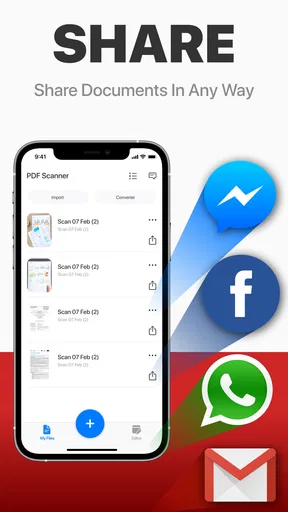
My third check would be the destination of the finished file. Sharing a PDF through a messaging service, email provider, or cloud drive creates a separate privacy decision. The scanner may only be one part of that chain. I would choose the recipient carefully, confirm the attachment before sending, and remove temporary copies from places where I do not want them stored.
I would also check the app’s visible controls for deleting scans or clearing a recent-document area. If a document remains available inside the app after sharing, I would prefer to remove it when I no longer need it. This is a simple habit, but it matters more than a polished scan preview when the pages contain confidential information.
User agency matters more than automatic convenience
A good document workflow leaves room for me to inspect and correct the result. I want to know which pages are included, whether the order is right, and where the final PDF is going. Automatic processing can save time, but I would not let it replace a human review for contracts, applications, or anything with a deadline.
For a routine receipt, I might accept a quick result after checking that the date and amount are readable. For a signed contract, I would slow down. I would compare the PDF with the paper, make sure no page is missing, and avoid sending it through a channel I do not trust. The app can help me create the file, but the responsibility for the final disclosure remains mine.
I also prefer to keep file naming under control. A descriptive name based on the document’s purpose is more useful than a generic camera-style label, but I would avoid placing highly sensitive information in the filename itself. A name that includes a full account number can expose details before anyone even opens the PDF.
When sharing from a phone, I would pause at the recipient screen instead of tapping the first suggested contact. This is one of the least obvious risks in a quick scanner workflow: the capture may be perfect, yet the wrong person receives it. The app’s convenience should encourage a final confirmation, not eliminate it.
Limitations I would consider before relying on it
The first limitation is the phone camera itself. Poor lighting, glossy paper, curved pages, and tiny print can reduce the quality of the result. Someone who regularly scans books, fragile originals, or large batches may be happier with dedicated hardware or a more advanced document platform.
The second is workflow depth. A simple scanner is not automatically a filing system. If I need reliable retrieval months later, I would still create an organized storage routine outside the app. That might mean consistent names, folders, and a backup plan. Without those habits, a clean PDF can still disappear into a crowded phone.
The third is the cost boundary created by optional purchases. Free access is attractive for occasional use, but I would inspect which actions are available without payment before planning a regular business process around the app. A tool that is inexpensive for a single form may become less appealing if my workflow depends on paid capabilities repeatedly.
The current version is 1.3.3, and the app requires at least Android 9. That makes device compatibility a practical checkpoint before installation. I would also keep the app updated through the normal store process, particularly for a tool that handles documents, while still reviewing permission changes rather than approving updates blindly.
I would skip this app if my main need is advanced optical character recognition, formal electronic signatures, collaborative review, or tightly controlled business archiving. I would also hesitate to use any mobile scanner as the only place for irreplaceable records. In those cases, a dedicated service with clearly documented controls may be a better fit, even if it takes longer to learn.
My cautious recommendation
I recommend PDF scanner - Scan Documents for people who want a focused way to turn occasional paper documents into shareable PDFs. Its free entry point, broad age rating, and business-oriented purpose make it approachable, while its popularity indicates that many users find the basic concept useful. I especially see value for freelancers, students, households, and small teams that need a quick scan without setting up a larger office system.
My recommendation comes with a clear condition: treat it as a capture and conversion tool, not as a complete privacy or records strategy. Check permissions, understand any account request, review the destination before sharing, and delete temporary copies when appropriate. Those steps are not unnecessary caution; they are part of handling documents responsibly on any phone.
For everyday paperwork, I like the balance between convenience and a focused purpose. For high-volume, highly confidential, or formally regulated work, I would choose a more specialized solution. If your needs sit between those extremes, installing it is reasonable, but I would first scan a harmless sample page and inspect the full path from camera to final share.
In short, this is a useful utility when the problem is “I have paper and need a PDF now.” It becomes a weaker choice when the problem is “I need a secure, searchable, collaborative document system.” Knowing which of those two problems you actually have is the best way to decide whether the app belongs on your phone.
Pros
- Quickly scans documents using your phone’s camera.
- Automatic edge detection helps create clean document crops.
- Supports multi-page files for convenient document organization.
- PDF output is useful for sharing
- printing
- and archiving.
- Simple interface makes basic scanning easy for most users.
Cons
- Scan quality depends heavily on lighting and camera focus.
- Advanced editing tools may be limited compared with desktop scanners.
- Some features or exports may require in-app purchases.
- OCR accuracy can vary with handwriting
- fonts
- and image quality.
- Large multi-page scans can take up considerable device storage.
FAQs for PDF scanner - Scan Documents
What is PDF Scanner - Scan Documents used for?
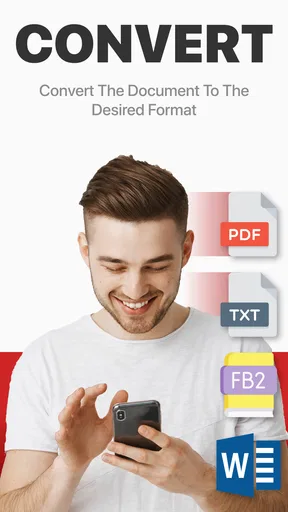
PDF Scanner - Scan Documents is designed to turn your smartphone or tablet into a portable document scanner. After testing it, I found it useful for capturing receipts, notes, contracts, forms, and other paper documents with the camera, then saving them as digital files. It can also help organize scanned pages and create shareable PDF documents without needing a separate scanner.
Does PDF Scanner - Scan Documents create high-quality scans?
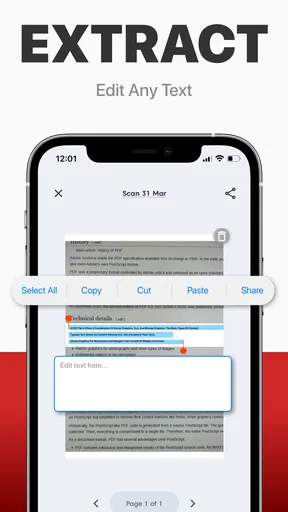
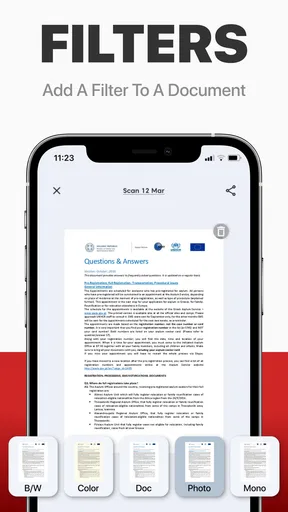
The app generally produces clear scans when documents are placed on a flat, well-lit surface. Its automatic edge detection and image enhancement tools can improve readability by adjusting contrast, brightness, and perspective. However, results depend on your camera and lighting conditions. Small text, shadows, glare, folded pages, or blurry photos may still require manual cropping or editing after scanning.
Can I scan multiple pages into one PDF file?
Yes, the app is intended to support multi-page scanning, allowing you to capture several pages and combine them into a single PDF document. This is particularly convenient for school assignments, business paperwork, invoices, or contracts. Before saving, you can usually review the page order, crop individual images, rotate pages, and remove scans that were captured incorrectly.
Is PDF Scanner - Scan Documents free to download and use?
The application may be available as a free download, but some functions can depend on the specific version, platform, or subscription plan. Advanced tools, unlimited scanning, cloud features, export options, or an ad-free experience may require in-app purchases. I recommend checking the current store listing carefully, especially the trial conditions and recurring subscription price, before confirming any payment.
Are my scanned documents private and secure?
You should treat scanned files as sensitive information because the app may handle documents containing identification details, addresses, signatures, or financial data. Review its permission requests and privacy policy before scanning confidential material. If the app offers local storage, saving files only on your device can reduce exposure. For cloud backup or sharing, use a trusted account and avoid sending private documents through unsecured channels.


